Add a licence file
Once your Esia licence has been renewed and validated by our administrative department, we will send you a file containing the new licence to be applied to your server. Please ensure you follow the steps below to apply this new licence to your server and prevent monitoring from stopping on the previous date.
Download the licence file via the link sent to you by email. Then, log in to your Esia web interface (the user account must be in the root group or have the esia_administration permission).
Warning, if you have a Svalinn license, you must first upload the Mercury or Heimdall license before the Svalinn license.
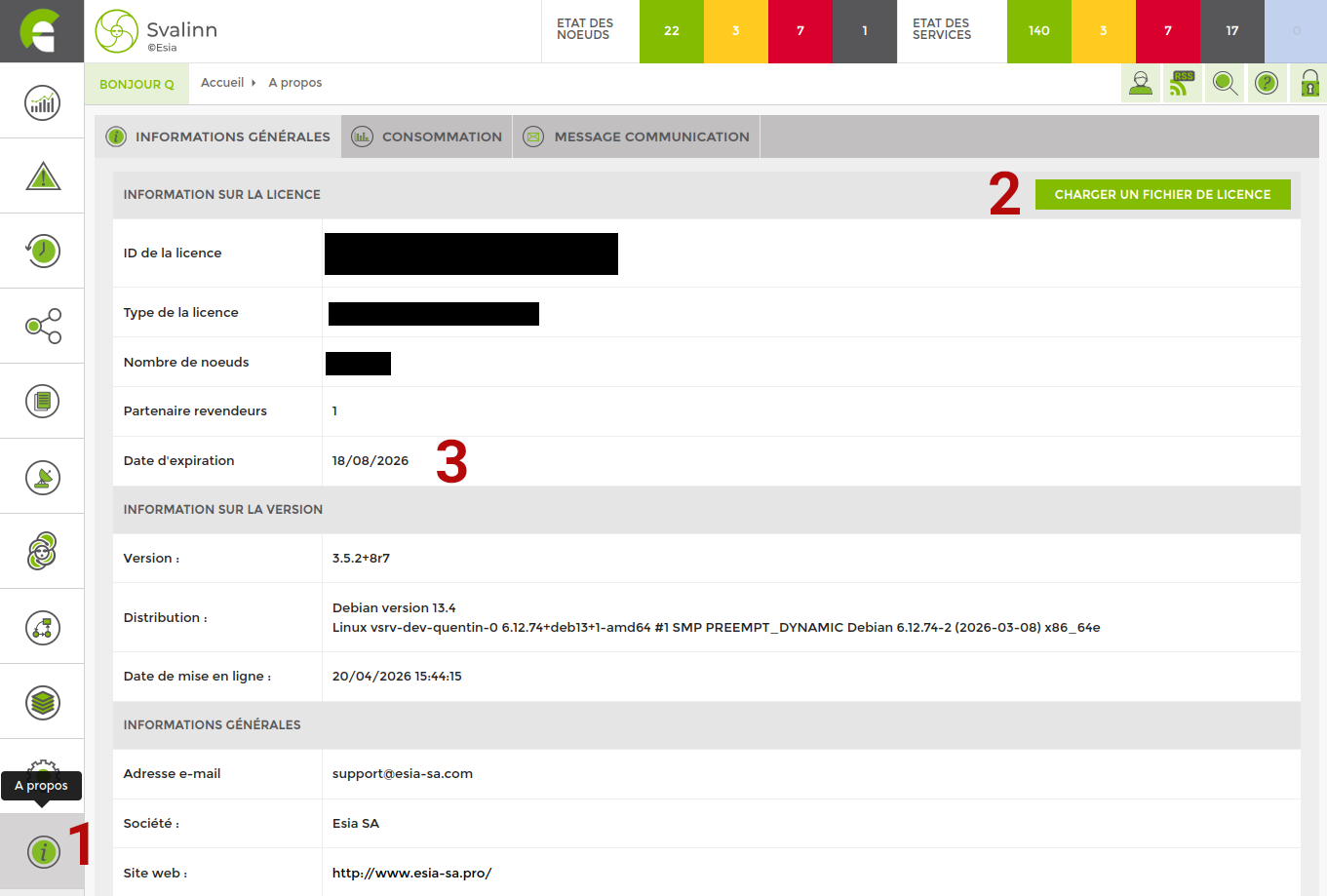
- Go to the About menu
- In the top right-hand corner, click on Upload a licence file
- Once the licence file has been successfully uploaded, check the expiry date of your licence
The Esia daemon will restart automatically within 5 minutes to apply the changes.