
Table of Contents
Configuring the GLPI ticketing system
Creating an API key in GLPI
This documentation guides you step by step through the process of generating an API key in GLPI (Gestionnaire Libre de Parc Informatique).
Connect to the web interface of your GLPI instance with an account that has administrative rights.
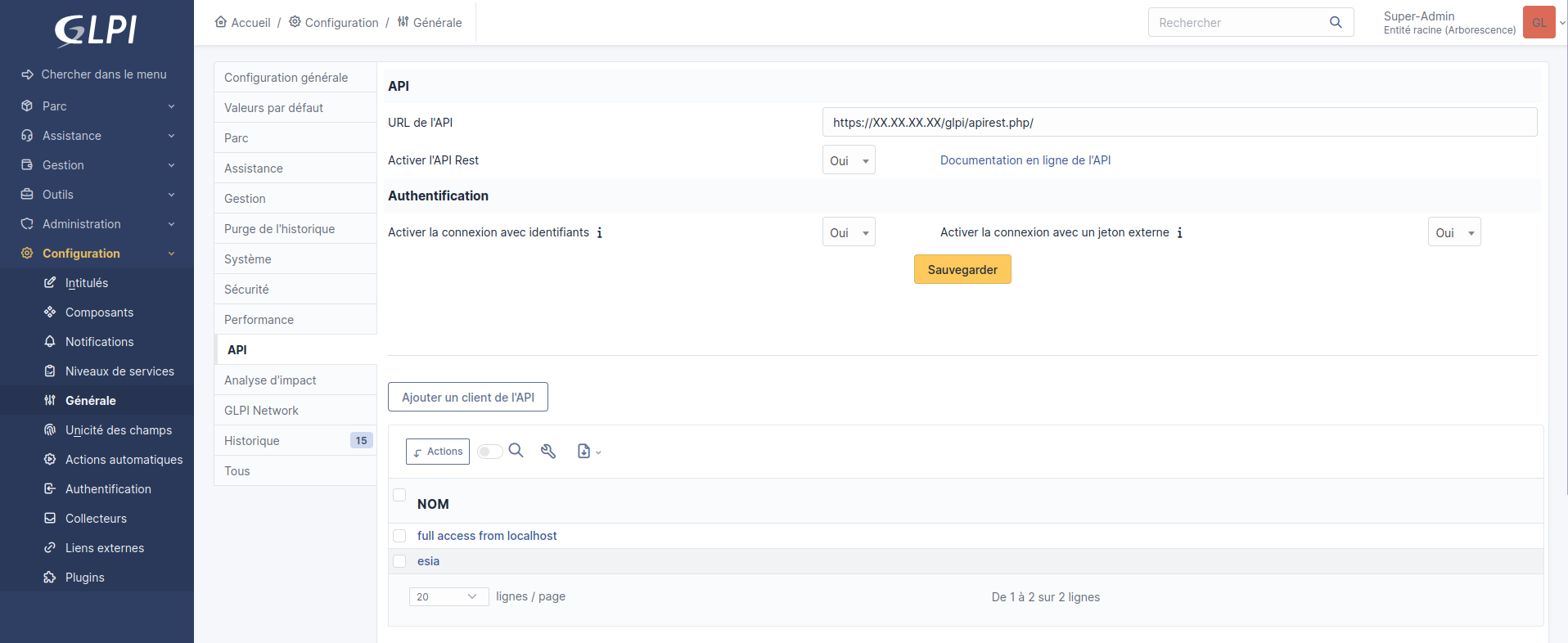
Activate the REST API
- In the main menu, click on Configuration → General.
- Go to the API TAB.
- Select « Yes » to Enable REST API.
- Click on Save.
Generate an application token (app_token)
If you don't already have a user for the API :
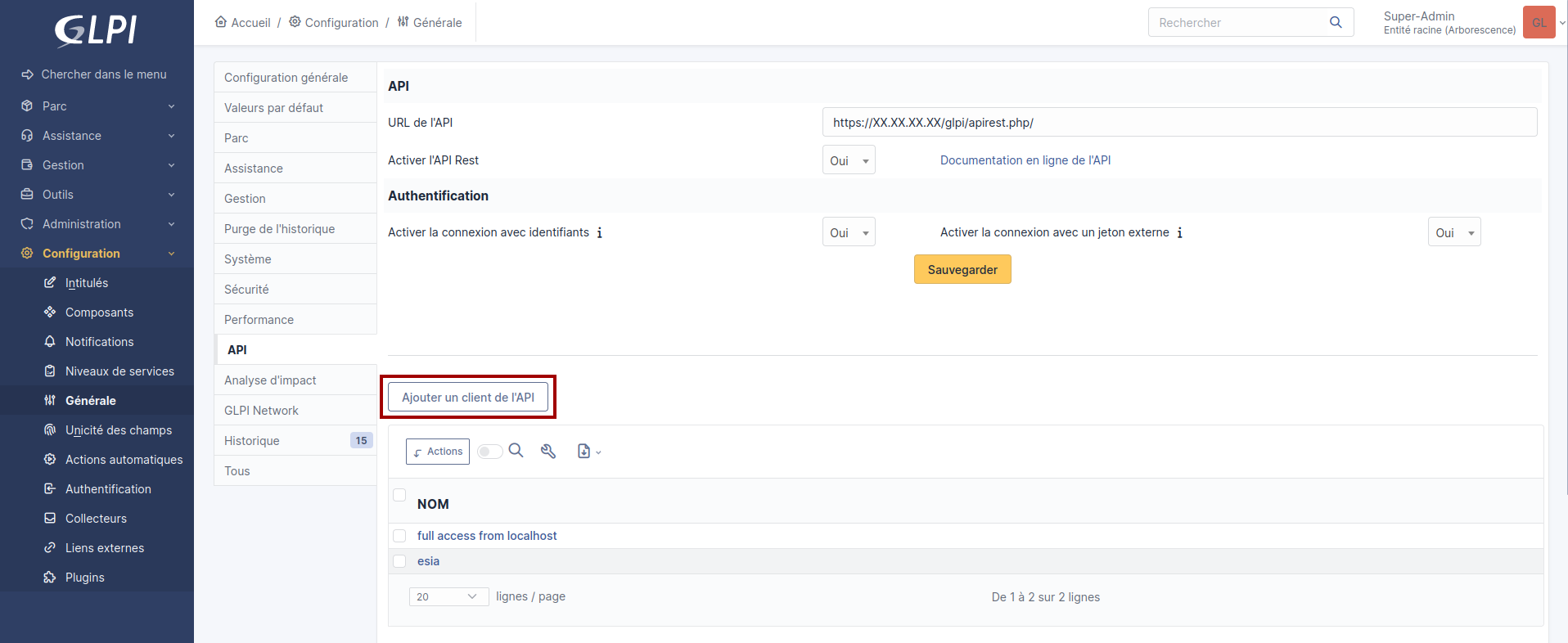
In the main menu, click on Configuration → General.
Go to the API.
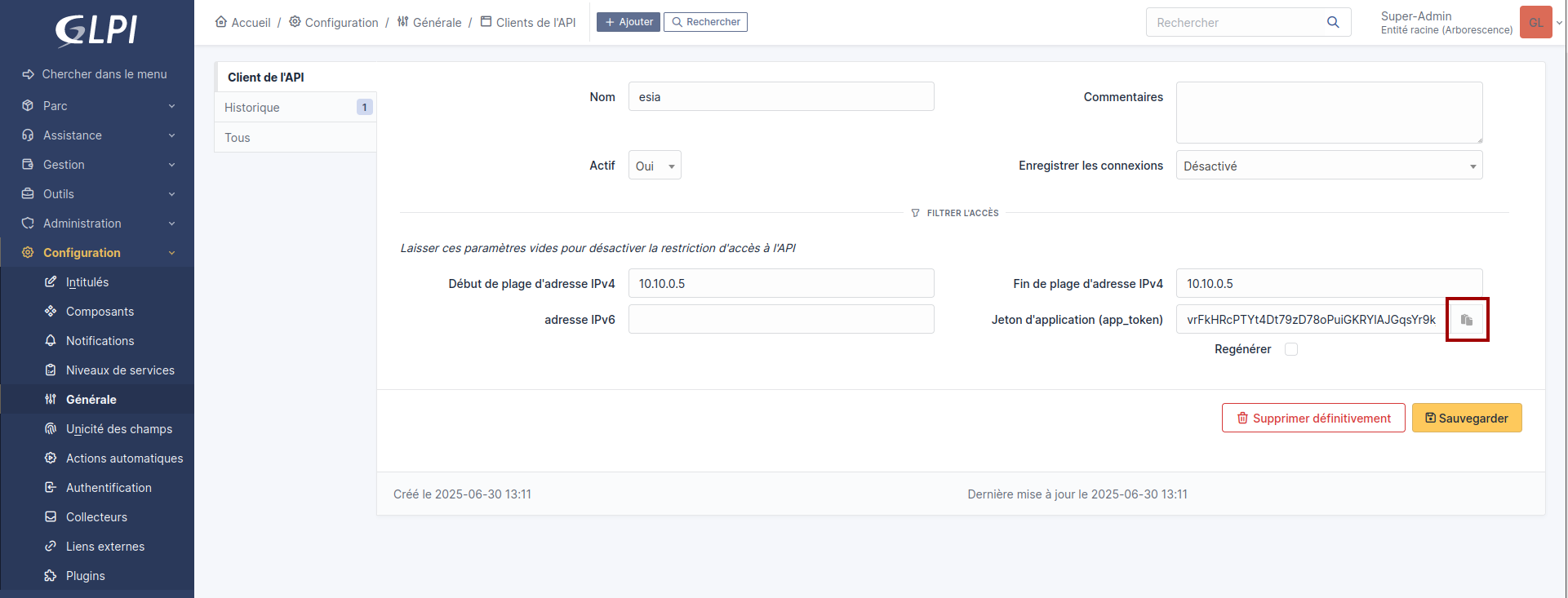
Click on Add an API client.
Give a name to the API client
Select « Yes » for Active.
Add Esia server IP in Start of IPv4 address range and End of IPv4 address range address range to restrict access.
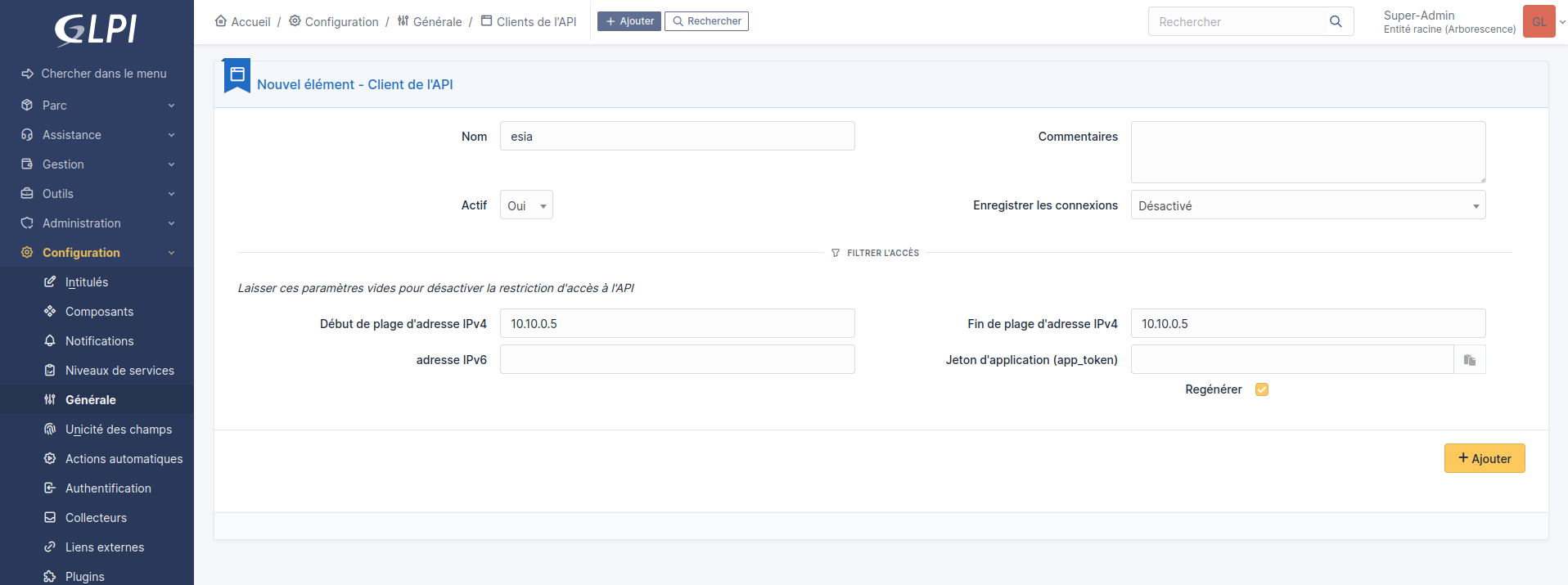
Click on Add.
Return to the previous page (Configuration → General → API) and click on the API client (esia) in the list.
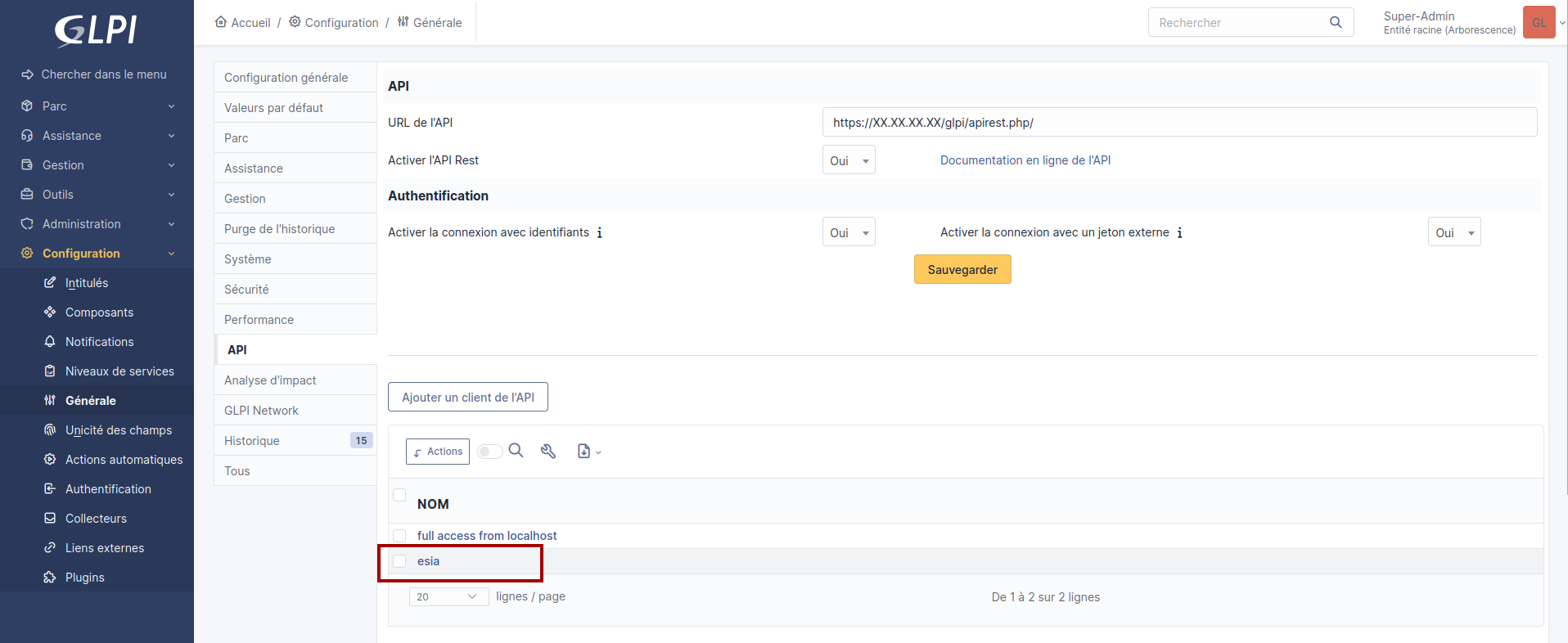
The generated API key is displayed: copy it and store it in a safe place.
Configure a user profile
We recommend that you set up a new user profile for Esia with only the required accesses. If this is not a problem for you, you can skip this step and use the « Admin » profile for the Esia user.
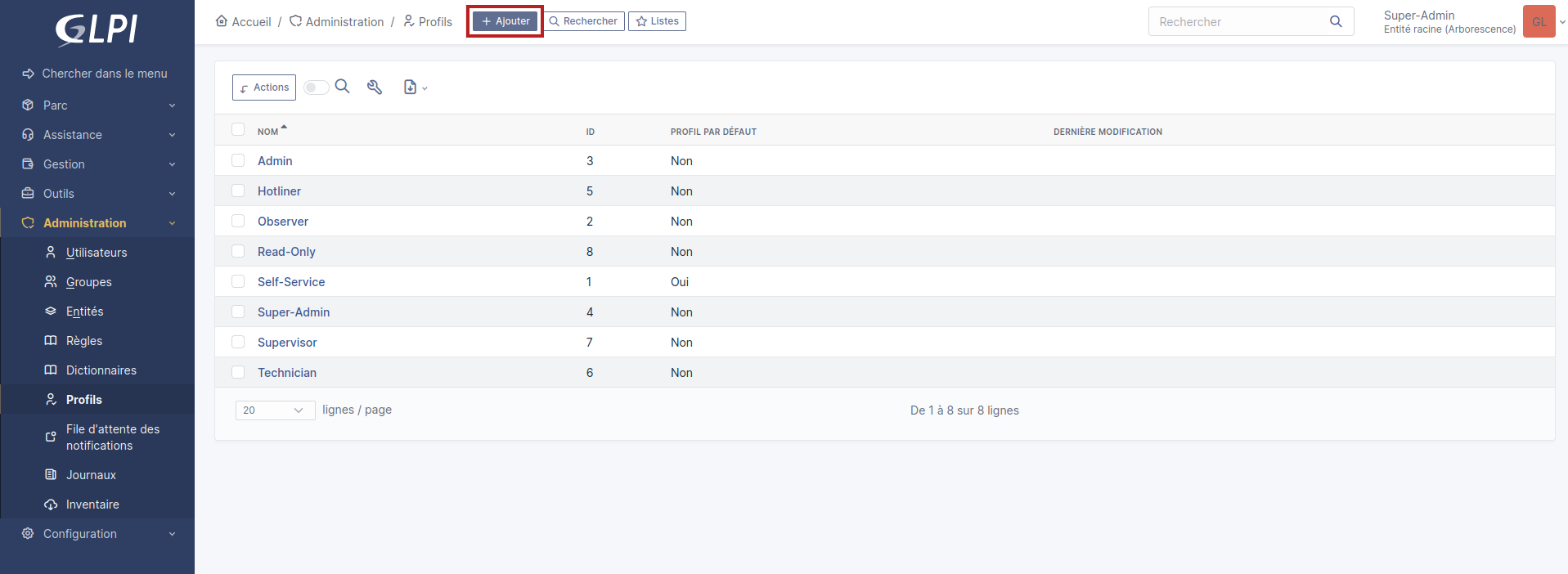
In the main menu, click on Administration → Profiles.
Click on Add.
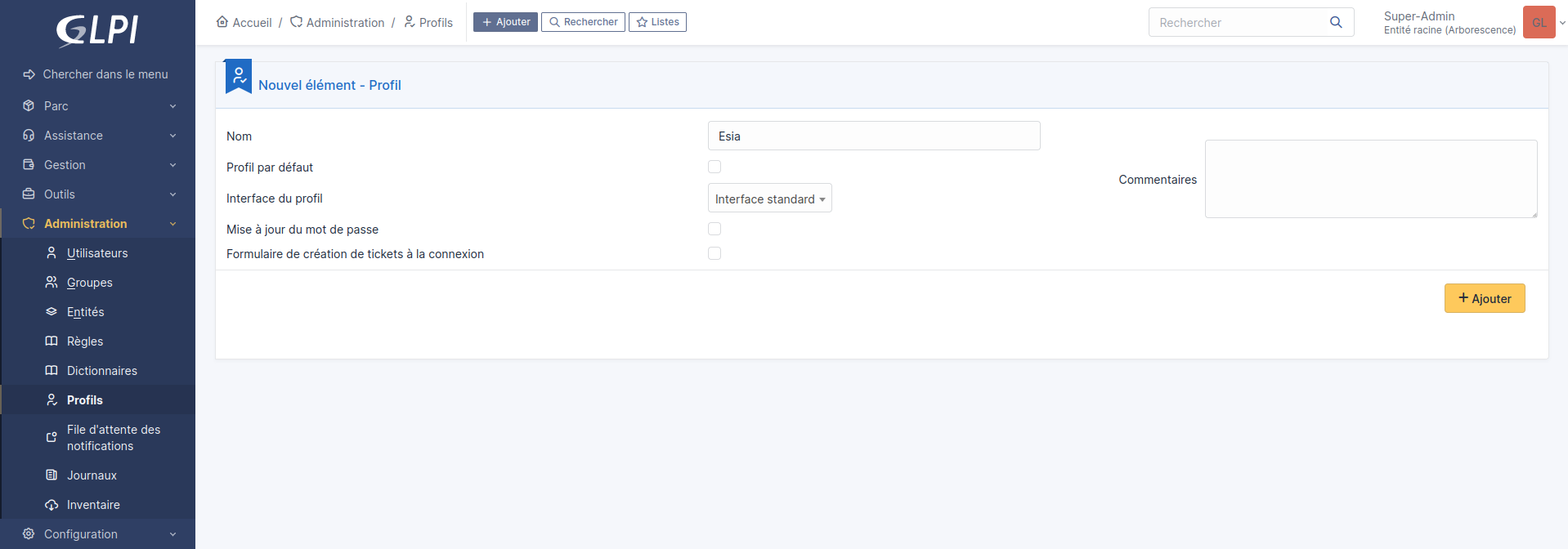
Give it a name and click on Add.
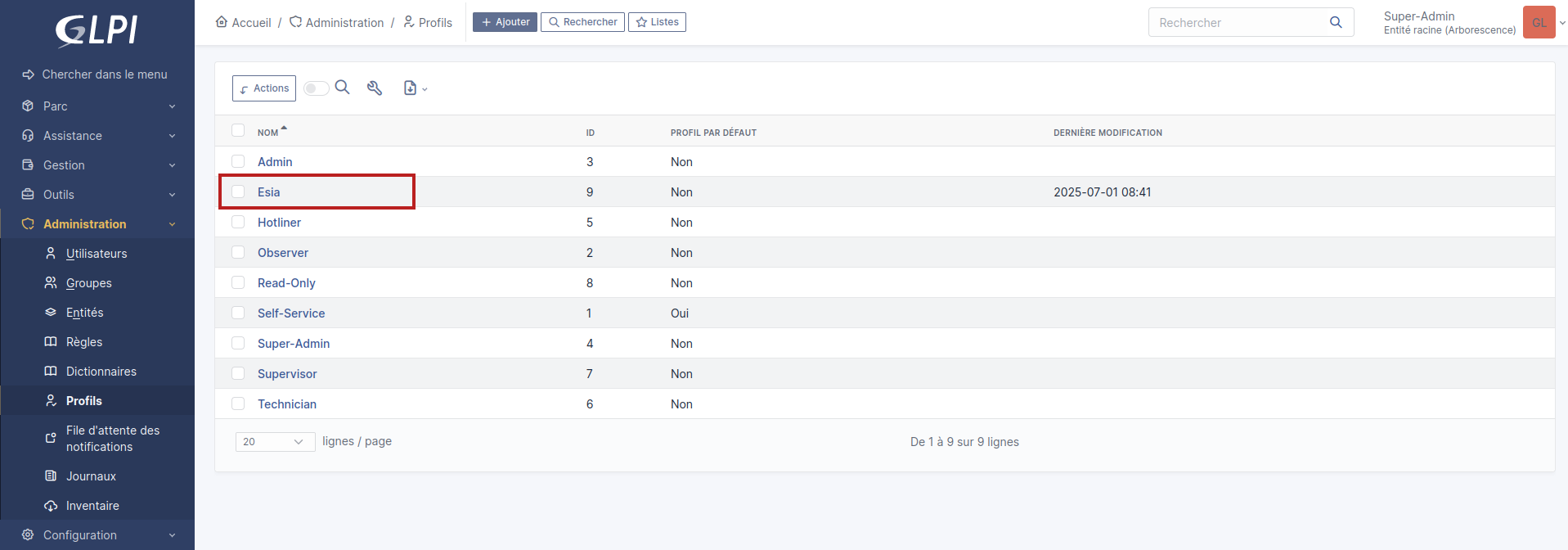
Return to the previous page (Administration → Profiles) and click on the new profile (esia) in the list.
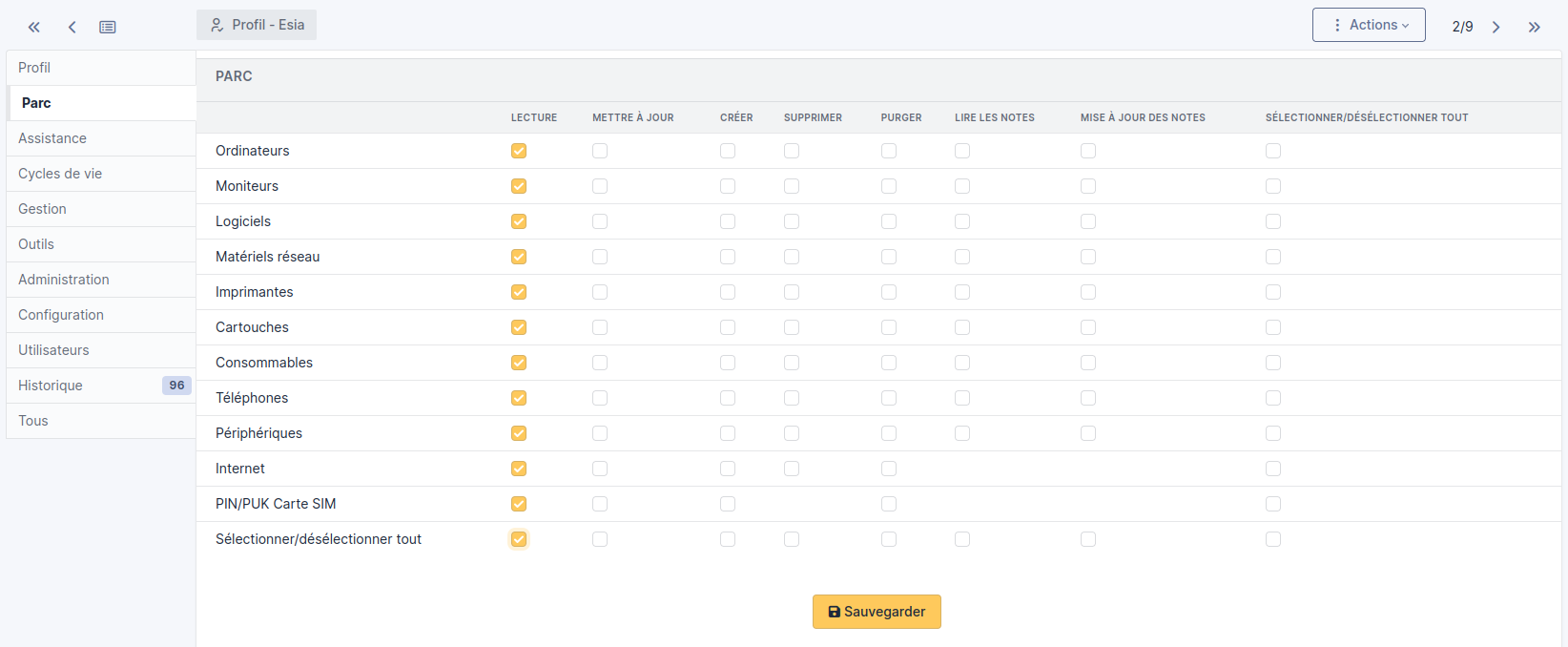
Go to the Park menu and select Play. This will allow Esia to link the node generating the ticket with the GLPI park if it finds a device with the same name.
Then click on Save.
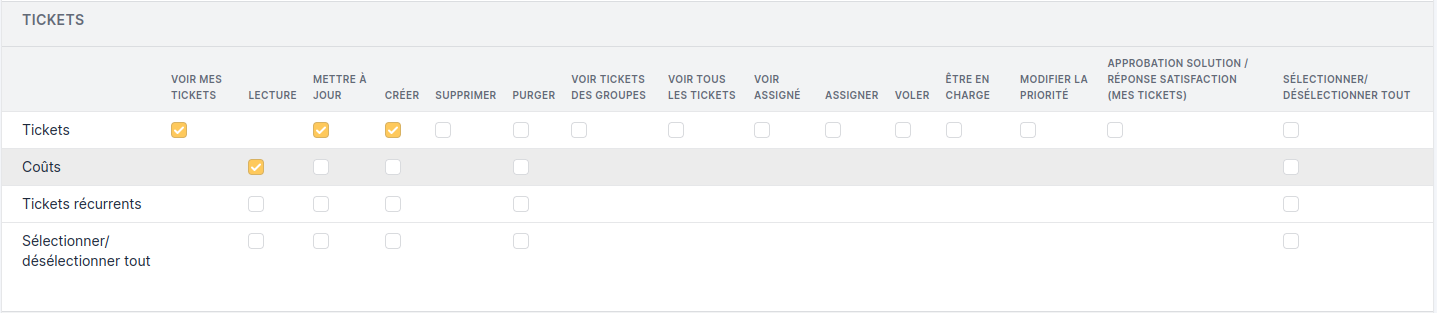
Go to the menu Support and configure the following sections as shown in the images.
Section Tickets:
Section Follow-ups / Tasks:

Section Validations:

Section Association:

Then click on Save at the bottom of the page.
Go to the Administration menu and in the Administrationsection, select Users at Read.
This is necessary to find the ID of the user (esia) who creates the tickets.
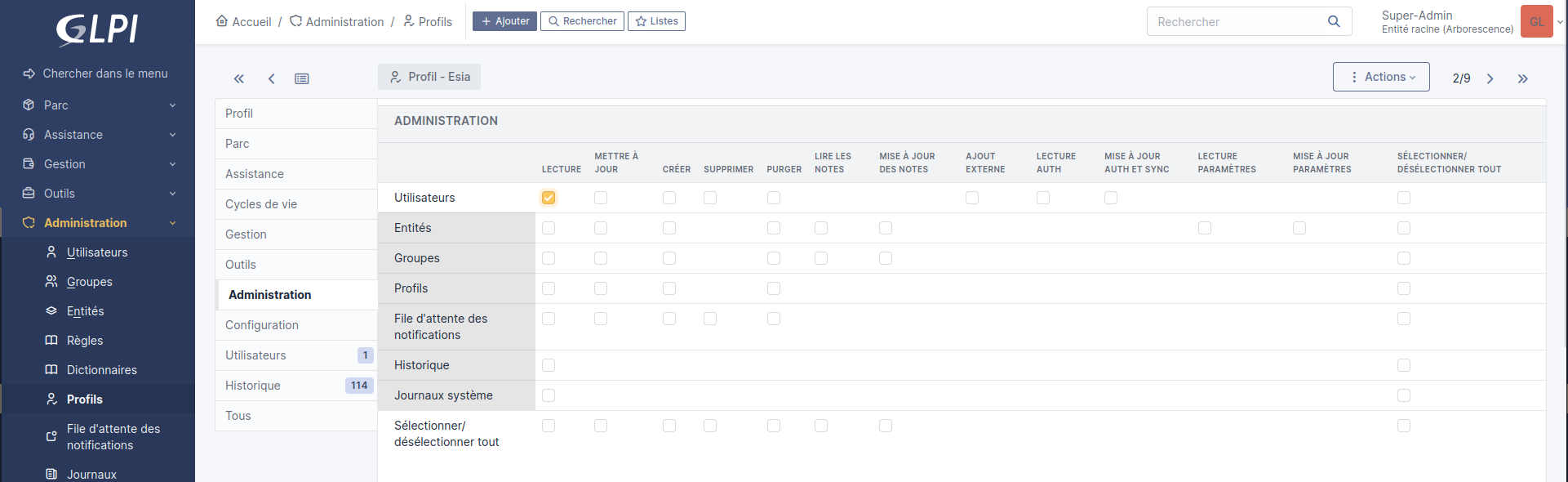
Then click on Save at the bottom of the page.
Profile configuration is complete!
Generate a user API token (user_token)
In the main menu, click on Administration → Users.
Click on the : Add user.
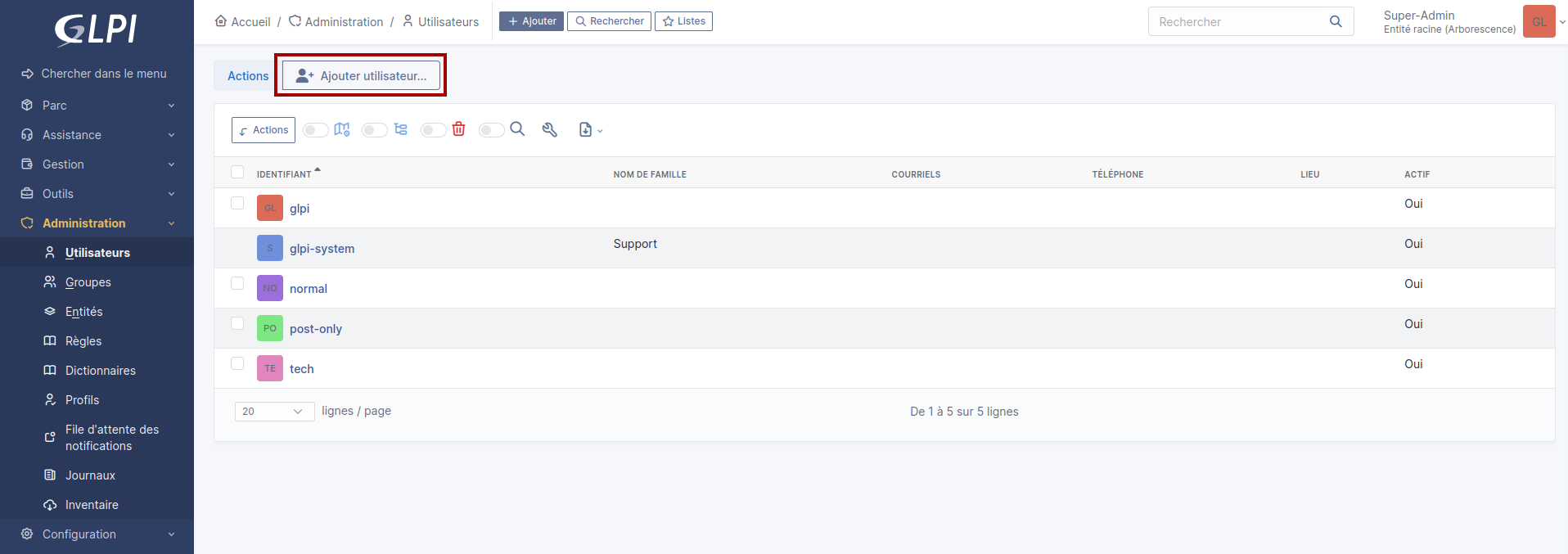
Fill in the user details, making sure you select « Yes » for Active
Add the profile Esia profile created in step Configure a user profile.
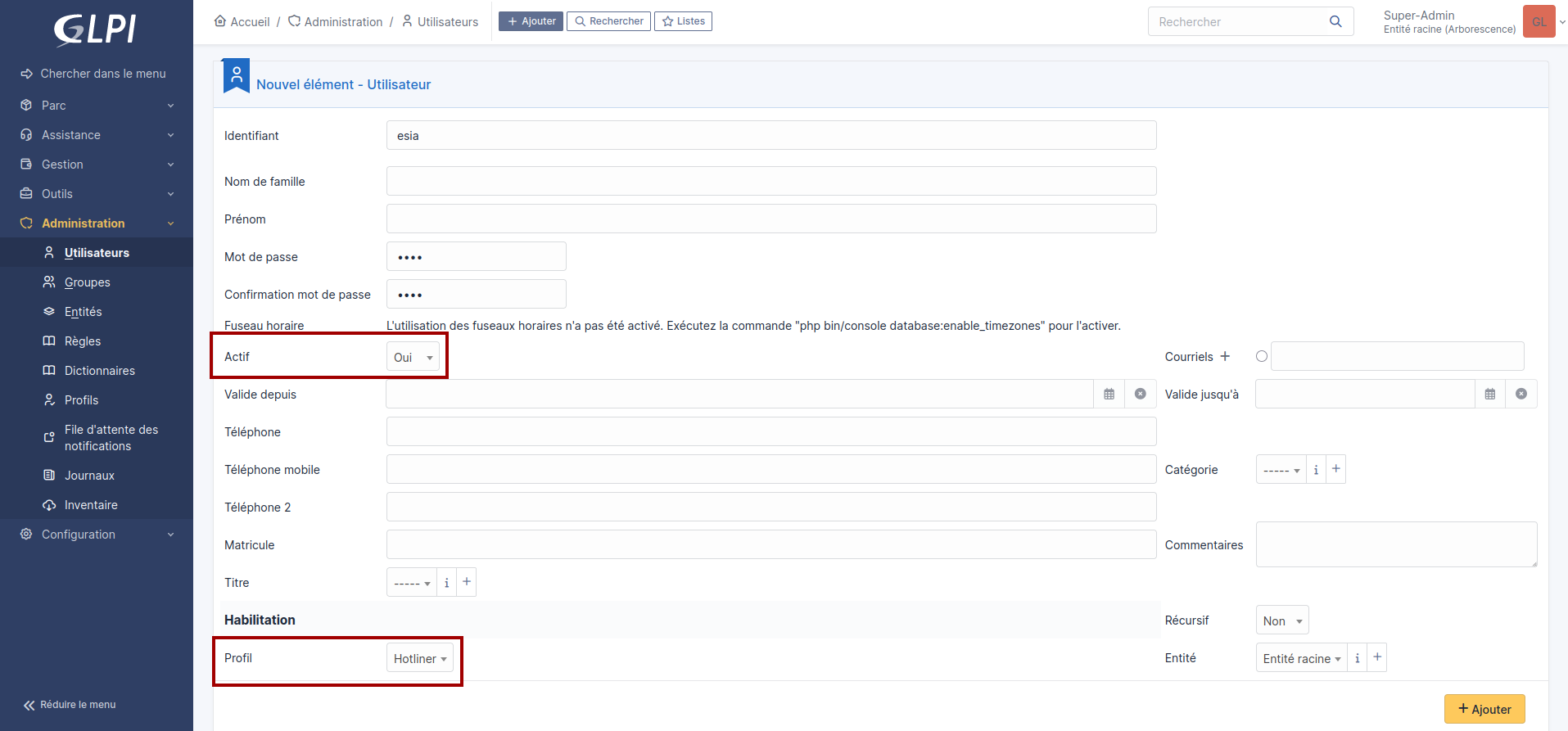
Click on Add to create the user.
Return to the previous page (Administration → Users) and click on the new user (esia) in the list.
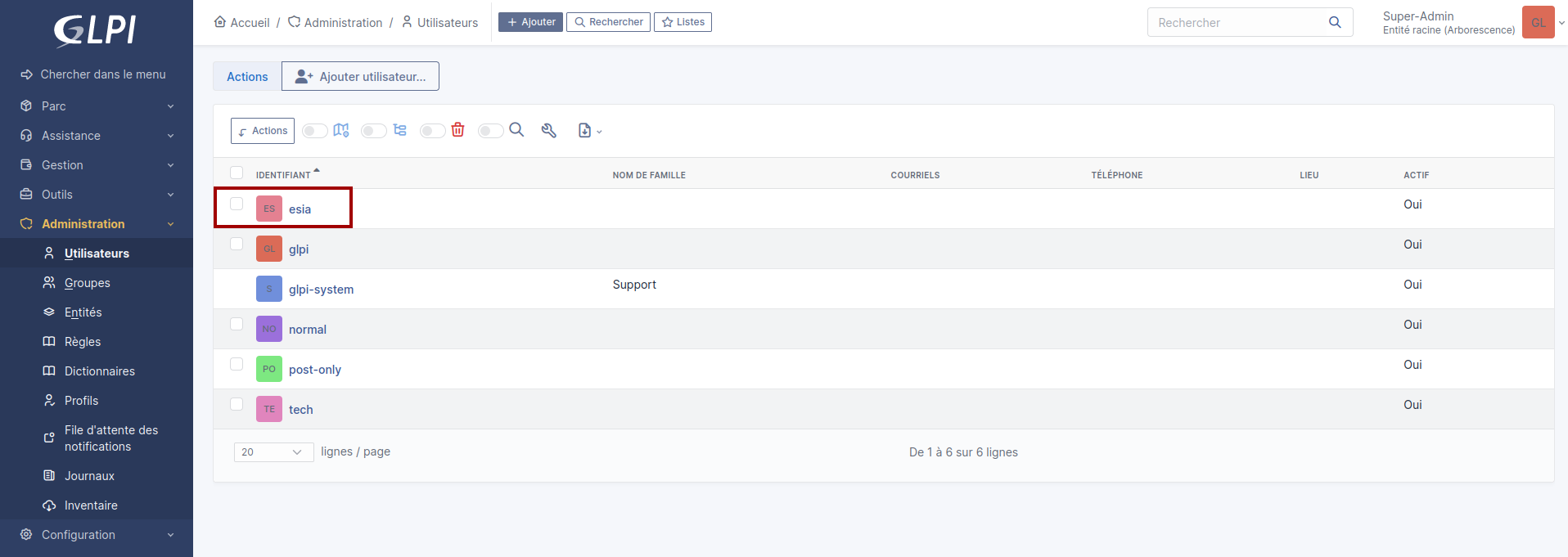
At the bottom of the page, in Remote Access Keys → API Token, check the box Regenerate then click on Save.

The generated user token is displayed : copy it and store it in a safe place.

Please note that this token must be regenerated each time user access rights (profile) are modified.
Configuration in Esia
Create/Modify the configuration file
On the server command line, edit the file /etc/esia/glpi.conf (Once you have finished with nano type ctrl+x then y to save the file)
- copy
nano /etc/esia/glpi.conf
Its contents should look like this:
- /etc/esia/glpi.conf
host="https://monserveurglpi.com/glpi"
app_token="vrFkHRcPTYt4Dt79zD78oPuiGKRYlAJGqsYr9kjv"
user_token="YjJC9qCUHSK8JKY1BSsJ2wDfg8IgBid1c1okKsrM"
user_name="esia"
tpl_title="( %node.group.name ) %node.name:%service.name"
The file contains the following key pairs=values:
host=“Access URL to your GLPI server”.
app_token=“Application token that you copied into the the GLPI interface”
user_token=“User API token that you copied into the the GLPI interface”
user_name=“Name of the user who will be used as the Requestor for tickets generated by Esia”.
tpl_title=“Ticket title template”.
This template is used to format the ticket titles that will be created. Keywords starting with % such as %node.name will be replaced by variables. It's the same principle as with the mail template.
We advise you to use the template in the example above where the keywords are :
- %node.group.name ⇒ node group
- %node.name ⇒ node name
- %service.name ⇒ service name
Configuring services to create tickets
Configuration is done via the Esia web interface. In the same way as configuring email alerts. See managing alerts.
Two alert programmes can be used to send tickets to GLPI
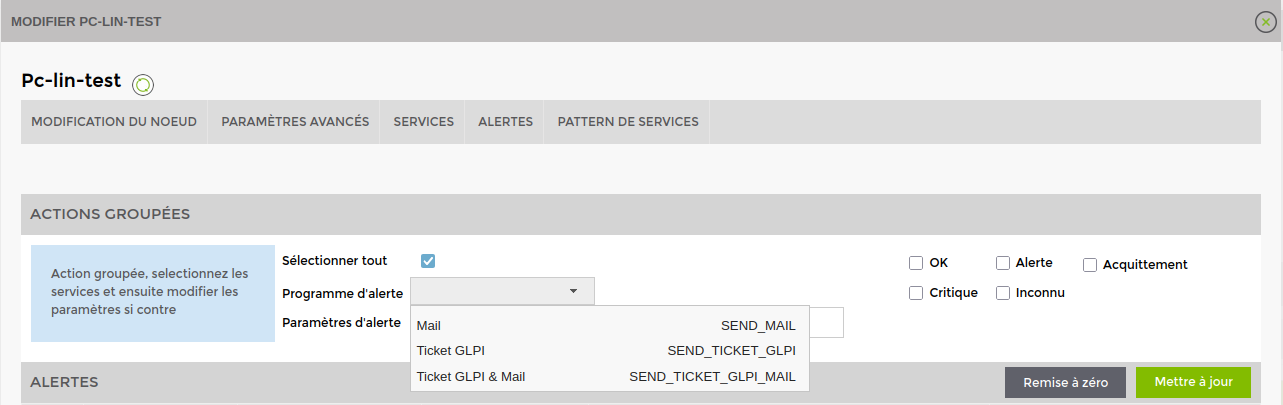
- Ticket GLPI ⇒ only generates a ticket on GLPI
- Ticket GLPI & Mail ⇒ generates a ticket on GLPI and sends an Esia alert by mail (like SEND_MAIL)
Configure tickets by service
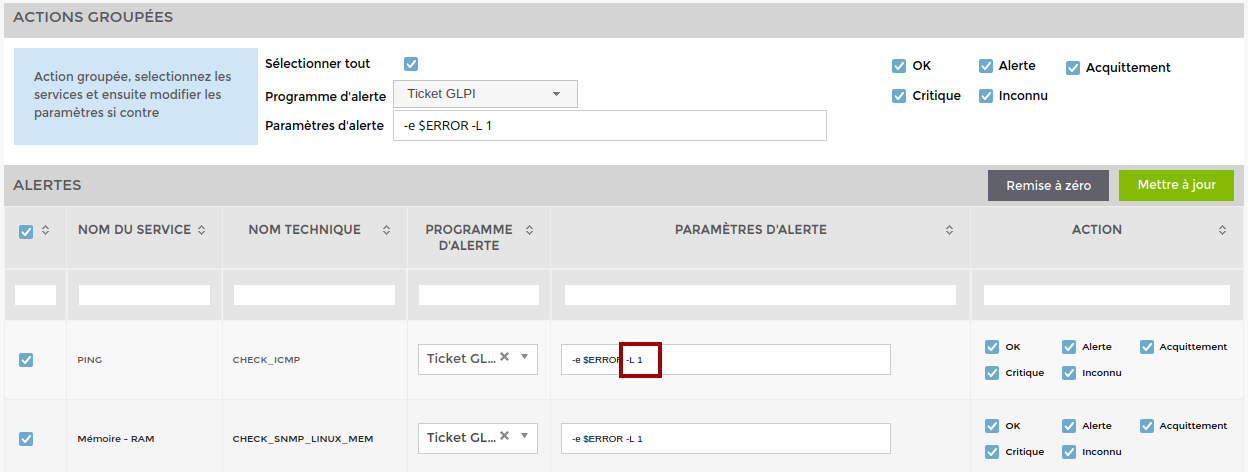 As for other alert programs :
Tick the services for which you wish to configure a ticket.
You can configure the services one by one or use the « Goup actions » section to set up all the selected services at the same time.
Choose the alert programme :
GLPI ticket (SEND_TICKET_GLPI)
Ticket GLPI & Mail (SEND_TICKET_GLPI_MAIL)
Your user's email address is added automatically, but you can change it.
Set up the alert programme.
In the command line the -L corresponds to the priority of the ticket. The larger the number, the higher the priority. Here is the list of corresponding priorities :
-L 1 ⇒ Very low
-L 2 ⇒ Low
-L 3 ⇒ Medium
-L 4 ⇒ High
-L 5 ⇒ Very high
-L 6 ⇒ Major
Then tick the type of alert for which you wish to be notified.
Alert, Critical, Unknown ⇒ The first time an error occurs on the service, a new ticket is created in GLPI. Subsequent status changes modify the priority (depending on the type of error) and display a status change message on the ticket.
OK ⇒ Considers the error to have been corrected and the ticket closed. Displays a message on the ticket and when the next error occurs, a new ticket will be created.
 Warning : If status « OK » is not ticked, there will only be service status changes on the ticket and never a new ticket for this service.
Acknowledgement ⇒ Coming soon (Esia 3.6.0) Warns you in the ticket messages that the error has been acknowledged or de-acknowledged.
Don't forget to click on « Update ».
When a new ticket is created, a node note is displayed with the link to the ticket

Another note is displayed when a ticket is completed (OK status must be ticked in the alert programme configuration).

Info
Priority list
1 ⇒ Very low
2 ⇒ Low
3 ⇒ Medium
4 ⇒ High
5 ⇒ Very high
6 ⇒ Major
